



If you are considering learning how to touch-type, then you’re probably aware there is a certain base position in which to rest your fingers so they can reach all of the keys on the keyboard. But becoming a pro at typing requires more than just knowing which finger sits on which key.
First you will need to learn how to reach the keys with the correct fingers and then you’ll have to practice, practice and practice some more. Typing quickly and accurately with correct finger placement involves building up some muscle memory in your hands, so they feel comfortable reaching for keys in sequence and the movements become automatic.
An online typing course can teach basic finger positioning
There are courses designed specifically to teach you typing. They show you where to position your hands on the keyboard and walk you through the right keys to hit with each finger. Some programs, such as Touch-type Read and Spell, use a multi-sensory technique to reinforce what you learn.
To help you practice each key, the corresponding letter appears on the screen and is read out loud. This strengthens memory, along with repetition and dictation exercises, and gives you plenty of opportunities to practice new material.

There are a lot of reasons to practice touch vs. two-finger typing
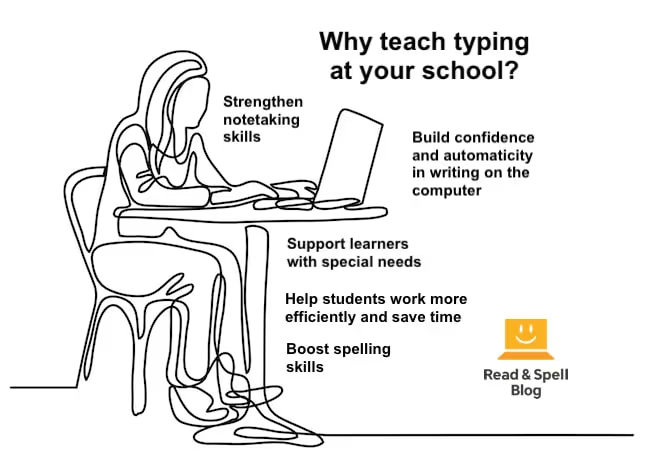
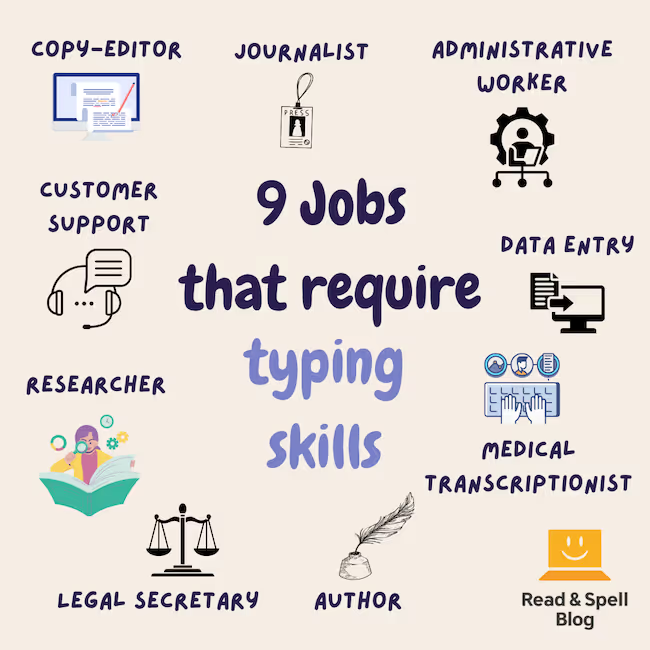
The good thing is when you learn touch-typing you open up new career opportunities and can even improve your academic performance. Students who learn to type the TTRS way typically improve their reading and spelling skills as well.
Typing can be a great boost for children with self-esteem issues and specific learning difficulties. It has also been successfully used to assist individuals with dyslexia, dyspraxia, autism spectrum disorder and visual impairments in reaching their full potential when it comes to developing strong literacy skills.
Fingers in position, hands ready
The position of the hands is much the same as it was when the method was developed back in the 1880s for use with a typewriter. In fact, the modern day keyboard layout, commonly known as QWERTY, hasn’t changed much over the years. Perhaps the most relevant difference for typists was the addition of the delete key with the advent of the computer!
Start with the home row
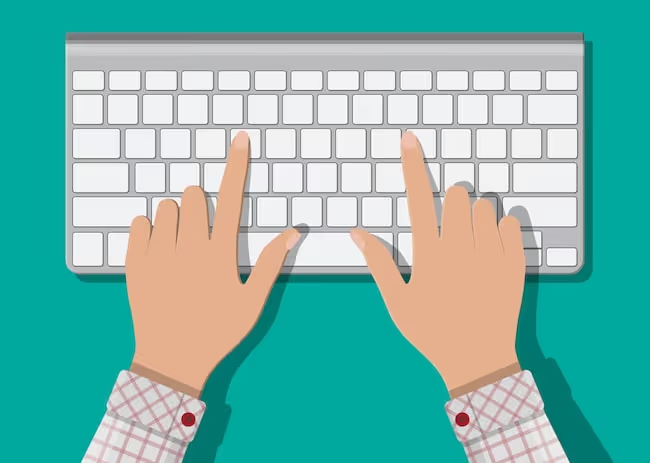
At rest, the fingers sit on the home row keys. If you’re not sure which ones these are, look two lines up from the spacebar on your keyboard and you’ll see them starting with ASDF on the left. The fingers of each hand should sit on four keys each. The left hand pinky finger starts things off on the “A” key, the ring finger sits on the “S” key, the middle finger takes the “D” and the index the “F.”
Thumbs don’t have a row and typically hover over the spacebar which can be hit with either hand, depending on the typist’s preference. When it comes to the right hand, the index starts off on the “J” key and the fingers fall in line across the “K,” “L” and “;” to complete the row.
Learn more about the home row keys.

Run your fingers along the F and J keys
This is how you position your fingers when you’re ready to begin. Keyboard makers have made it easy for you to get back here by placing a slightly raised line on the “F” and “J” keys. This ensures your index fingers can guide the rest of your hands back to the home row at each pause in typing without looking.
Each finger is responsible for a group of keys
The rest of the keyboard has been divided up so each finger is responsible for a certain group of keys (the letters in its vicinity).
Every finger is used to reach the keys diagonally above and below it. For example, the middle, finger of the right hand sits on “K” when at rest but reaches up for “I” and down for “,” key.
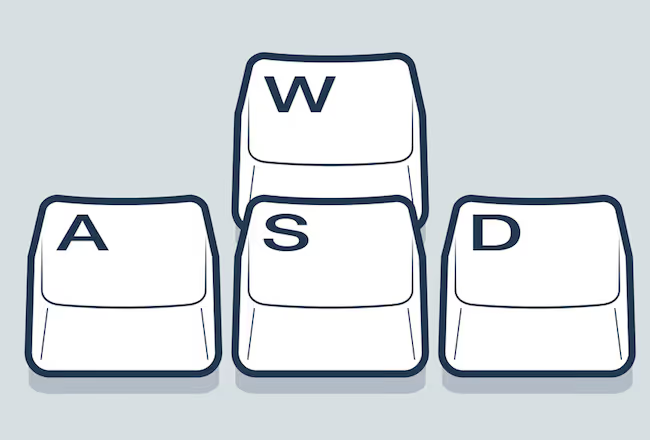
The ring finger of the left hand sits on “S” but moves up for “W” and down for the “Z” key.
However, the fingers on the ends of rows have slightly more work to do as they are also involved in functions other than letter choice, such as indenting, moving to a paragraph and making a letter uppercase.
Each index or pointer finger is responsible for two rows of keys. The right hand pointer takes the “U” and “M” column, as well as the “Y,” “H” and “N” keys. The left hand index finger is at rest on “F” and moves up for “R,” down for “V” and over for “T,” “G” and “B”.
It can take time to get used to the new finger positions
The reaching involved here can feel quite awkward in the beginning and you’ll likely need plenty of practice typing these letters before you master them. Your little fingers will also have to do some stretching as they are required for everything on the ends that isn’t covered by another finger.
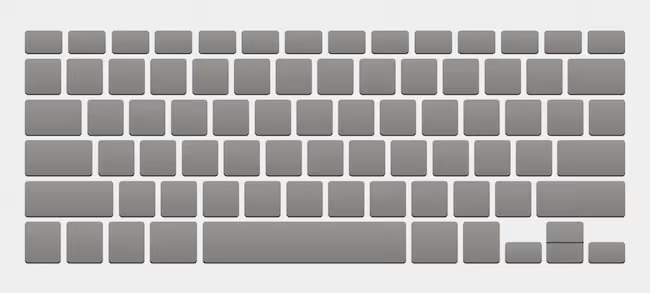
Typing tips
1. Position your hands. When you position your fingers on the keyboard, it can help to curve them slightly and place your hands down lightly, so they are ready to move. It may feel awkward initially but will become more comfortable the more you practice.
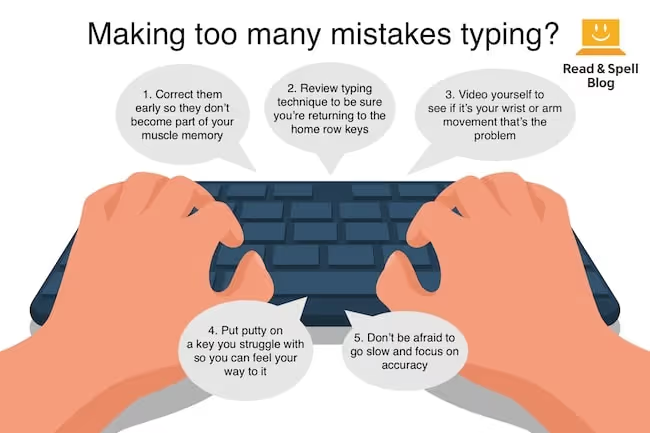
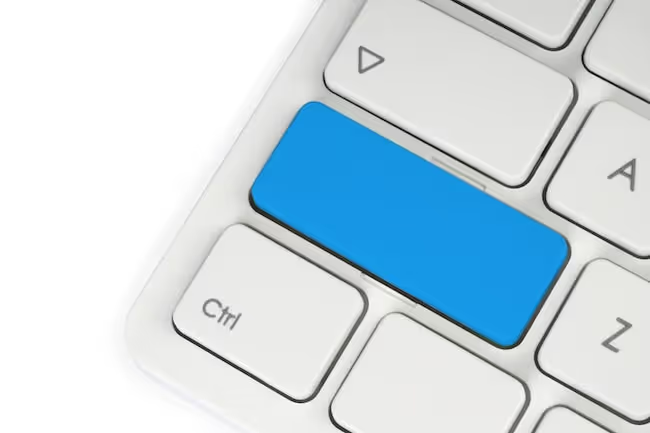
2. Don’t look down. Try imagining the keyboard and then feeling your way through it. Whatever you do, it’s best not to look down, even if you are completely unsure of the key you’re about to type. TOP TIP: When you struggle to learn the position of a particular key, place some blue tack on it to make the surface more recognizable by your fingertips. Next, do some typing drills of words that force you to use that key.
3. Position your wrists. Don’t let your wrists droop. Your hands will get tired more quickly and you may be setting yourself up for wrist problems in future years. A rolled towel placed along the front of the keyboard, or a wrist guard can help. For the correct wrist position, imagine yourself playing the piano.
4. Use all of your senses. Listen out for the rhythm of your typing and keep your eyes on the screen ahead. If you’re using an online typing course, make sure it is one where the letters and words you are practicing are read out loud as you type them. Let your sense of touch do the work.
5. Learn keyboard shortcuts. Certain keyboard shortcuts can be advantageous to learn once you’ve mastered the basics of typing text. You may need to use your thumbs to reach the Ctrl or Apple Command buttons that shortcuts require.
6. Maintain good posture. Keep your back straight, knees bent and arms extended. Be careful not to place too much weight on your wrists as this can lead to typing injuries such as carpal tunnel syndrome, as mentioned previously.
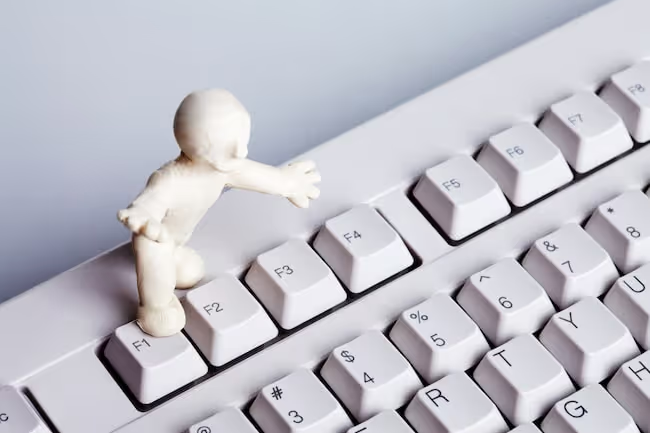
7. Check your keyboard. If you are really struggling, it may be that the keyboard you are using doesn’t fit your hands. Some adults with large hands may find they hit more than one key at once, while children with smaller hands tend to struggle more when reaching for keys. It can also be the keys are overly sensitive and register from a light touch. On the other hand you may need to pound them on an older keyboard. Keep in mind there are plenty of keyboard options out there so you can always find one that will be more comfortable and make typing easier. Learn more about different kinds of keyboards.
8. Start typing lessons early. Children are generally thought to be ready for typing lessons at the age of 6-7, when their hands are big enough for the keyboard. Teaching typing to children at this age coincides with reading, writing and spelling lessons at school and can give them a boost across the board when it comes to literacy skills.
9. Ask for help. If you struggle with fine motor skills, such as is the case for both young children and stroke survivors who are learning typing, it’s important to have someone work through an online typing course with you. When you can’t find a particular key, ask your assistant to gently stroke the correct finger to enhance the sensory input for that combination. It will make it easier for you to find the right position next time.
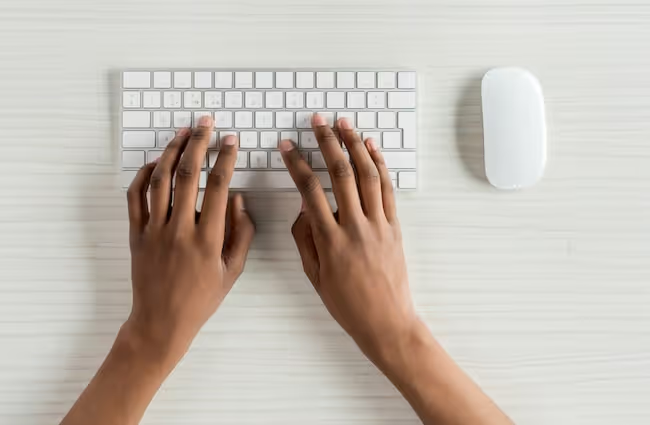
Why you should learn typing
When you learn touch-typing you’re giving yourself an advantage over individuals who “hunt-and-peck” because you will be faster in every activity that involves using a computer—from emails, to Google queries and even academic essays; you’ll be saving a ton of time!
Typing can also improve the quality of your work, as thoughts flow freely through the fingertips and onto the screen, without the interruption of searching the keyboard for the right keys.
How long does it take?
Basic finger positioning is fairly straightforward to master, but it can take some time to get used to reaching all of the keys.
How long does it take to learn? It all depends on the individual. Don’t be worried if the going is slow initially.
It’s important to learn each key properly before moving on to cover more material. Following the TTRS method of teaching this skill, the average person who has no learning differences or difficulties can expect to cover the fingering on the keyboard in about three to five hours. After that, it’s a question of building up speed and accuracy through practice.
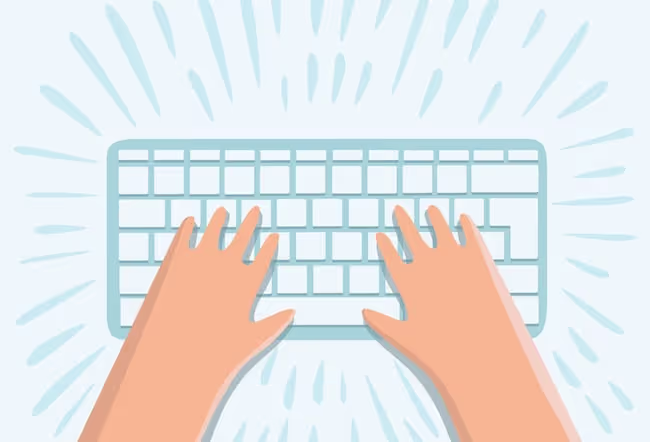
The touch-typing method vs two finger typing
It’s easier to learn to touch-type at an early age so you don’t have to unlearn the “bad habits” that come from hunt-and-peck. Older hunt-and-peckers might feel frustrated in the very short term when slowed down by finding the right key without looking. However, persistence is well worth it. Touch-typing is a skill that sets you up for life.
A good typing program will ensure there are multiple levels corresponding to each set of keys, so you can practice with the ones you know before moving on to exercises that use more of the keyboard. Completing one level at a time and receiving plenty of positive feedback from your online scores will keep you motivated and help you reach your goal at the pace that is right for you.